Table of Contents
TogglePictory AI vs Canva — They’re Not Really Built for the Same Job
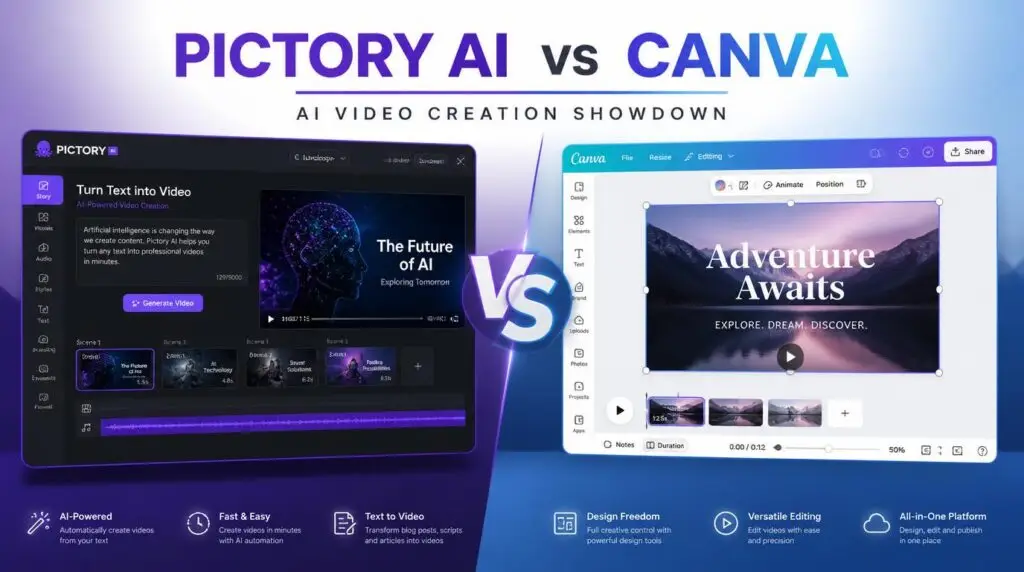
Pictory vs Canva is one of the most common comparisons creators run into once they start making video content regularly. Both tools can be useful for creating video, but the workflow behind each one is quite different. Comparing them feature by feature misses the bigger point: they solve different problems for different starting points.
Two Different Approaches to Video Creation
In the Pictory vs Canva comparison, Canva is primarily a broad visual design platform. Video is one of many things you can create inside it, alongside graphics, presentations, and social media posts. You work visually — dragging elements, choosing templates, arranging layouts by hand.
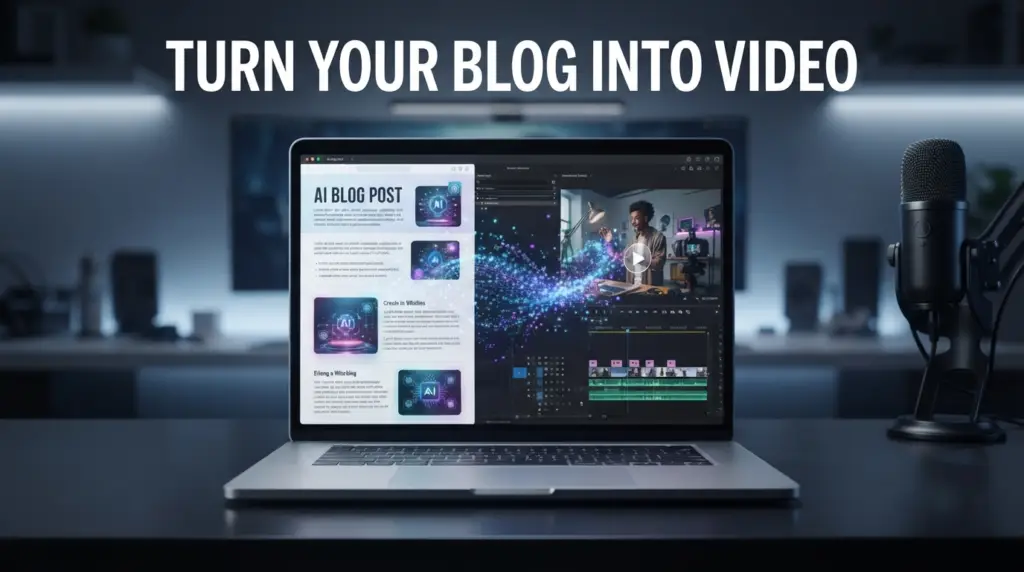
Pictory is much more focused. It’s built specifically around turning written content and ideas into video quickly, using text as the starting point rather than a visual canvas. If you want to see how that works in practice, our guide on how to turn a blog post into a video in 10 minutes walks through the process.
Where Canva Has the Advantage
Looking at Pictory vs Canva side by side, Canva leads on visual design:
Design flexibility — precise control over layout, branded templates, and custom graphic elements
Template-based content — social graphics, branded intros, and consistent visual templates
Design consistency — useful if you’re already using Canva for graphics and want video in the same ecosystem
Where Pictory Has the Advantage
In the Pictory vs Canva matchup, Pictory leads on speed and automation:
Speed from text to video — if your starting point is written content, Pictory gets you to a working draft much faster
Automatic visual matching — no need to manually search for and place every visual element
Scene-based editing tied to your script — editing largely means editing text, which is faster for text-driven content
If speed is your priority, you can try Pictory free here and see how the text-to-video workflow compares to a design-first tool.
Pictory vs Canva: Which One Makes More Sense?
It depends heavily on what you’re trying to create — and more specifically, where your process actually starts.
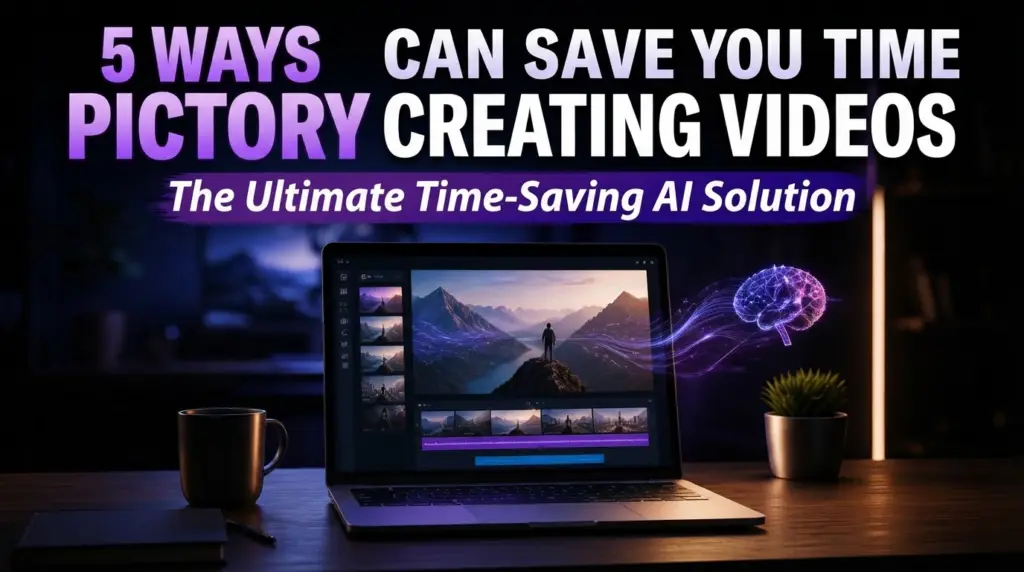
If you usually begin with written content — an article, a script, notes — and need that turned into video quickly, Pictory’s text-to-video approach fits more naturally. Our breakdown of the 5 ways Pictory can save you time creating videos covers this in more detail.
If you usually begin with a visual concept — a specific design idea, brand template, or layout — and want precise creative control, Canva’s design-first tools are the better starting point.
Using Both Together
In the Pictory vs Canva debate, the two tools aren’t mutually exclusive. Some creators use Pictory to quickly generate a video draft from a script, then bring specific graphic elements — a logo, a branded intro, custom text overlays — from Canva into the final video for a more polished, on-brand finish.
For creators who publish regularly, this hybrid workflow — Pictory for the draft, Canva for the final polish — often produces better results than committing to a single tool.
If you want a closer look at Pictory’s full feature set before deciding, our Pictory AI page breaks down what it does and who it’s for.
Final Thoughts
For Pictory vs Canva, rather than asking which tool is “better” in the abstract, the more useful question is which one matches how you already work. This comparison is based on actual use cases rather than simply declaring one tool the winner — because for most creators, the honest answer depends on the project.
It’s also worth remembering that neither tool replaces the other for every use case. Some projects need Canva’s visual precision; others need Pictory’s speed from text to video. The right answer depends on what you’re making — and how you already work.
If you want to see how Pictory handles a specific workflow — from PDFs, blog posts, or scripts — we have more guides on Pictory on the site.
Ready to try it yourself? You can test Pictory free here.
This article may contain affiliate links, learn more.
What is Pictory AI?
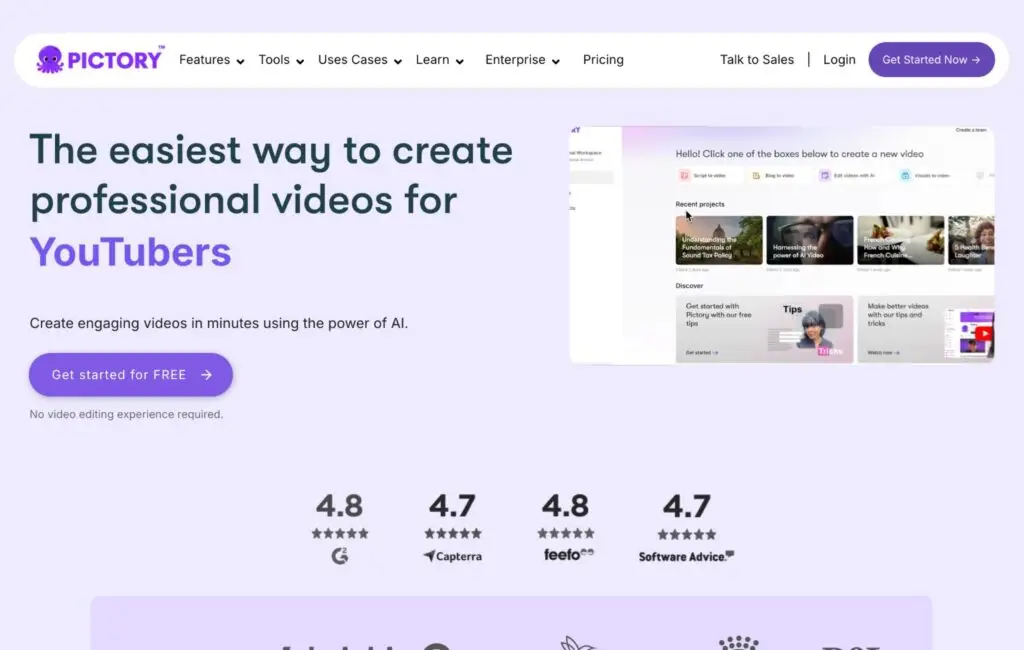
Pictory AI is a video creation tool that uses artificial intelligence to turn text into professional videos. It can take any text content – including PDFs, blog posts, scripts, or web links – and automatically generate a video with matching visuals, voiceover, and music.
You don’t need any editing skills. You don’t need to appear on camera. You just upload your content and let AI do the work.
How to Turn a PDF Into a Video With Pictory AI (Step-by-Step)
Here’s exactly how to turn a PDF into a video with Pictory AI:
Step 1: Open Pictory and Start a New Project
Go to Pictory.ai and log in to your account. If you don’t have one, you can sign up for a free trial.
Click on “Create New Project” and select “Text to Video” as your input type.
Step 2: Upload Your PDF or Paste the Text
You have two options here:
Upload the PDF file – Pictory will extract the text automatically
Copy and paste the text – If your PDF is short, you can paste it directly
For longer documents (like ebooks or reports), uploading the PDF is faster.
Step 3: Let AI Generate the Video
Once you’ve uploaded your content, click “Generate Video.” Pictory AI will analyze your text and create a video with:
Matching visuals and stock footage
AI voiceover (choose from multiple voices)
Background music
Automatic captions
The whole process takes 2-3 minutes.
Step 4: Customize Visuals, Music, and Voice
After the AI generates your video, you can customize it:
Change the voiceover (male, female, different accents)
Replace visuals with your own images
Adjust the music volume
Edit the text if needed
You can also choose from different templates and styles.
Step 5: Add Captions and Brand Kit
Pictory automatically adds captions to your video. You can customize the font, color, and size to match your brand.
If you have a Brand Kit (logo, colors, fonts), you can upload it to keep your videos consistent.
Step 6: Export and Share Your Video
Once you’re happy with the video, click “Export.” You can download it as an MP4 file or share it directly to YouTube, Facebook, or Instagram.
That’s it! Your PDF is now a professional video.
Tips for Better PDF-to-Video Results
Tip 1: Use Clear Formatting
Make sure your PDF has clear headings and short paragraphs. Pictory AI works better with structured text.
Tip 2: Add Visuals
The AI will automatically add stock footage, but you can also upload your own images or screenshots to make the video more personal.
Tip 3: Choose the Right Voiceover
Pictory offers multiple AI voices. Choose one that matches your audience. For business content, a professional male or female voice works best.
Tip 4: Keep It Short
Videos shorter than 5 minutes perform better on social media. If your PDF is long, break it into multiple videos.
Pros and Cons of Using Pictory for PDF Videos
Pros:
✅ Extremely easy to use – no editing skills required
✅ Saves hours of manual video creation
✅ AI-generated visuals and voiceover
✅ Automatic captions included
✅ Free trial available
Cons:
❌ Limited customization compared to professional editors
❌ Can be slow with very long documents (100+ pages)
❌ Some AI voices sound robotic
Conclusion: Is Pictory AI Worth It?
If you regularly work with PDFs and want to repurpose them into videos, Pictory AI is absolutely worth it. It saves you hours of editing time and produces professional results without any technical skills.
Whether you’re a content creator, marketer, business owner, or educator, turning PDFs into videos can help you reach a wider audience and increase engagement.
👉 Try Pictory AI for free today: https://ayatools.com/pictory
Pingback: PDF to Video Pictory AI: How to Turn PDFs Into Videos
Pingback: How to Write a Script for AI Video Generator Tools (That Actually Work)
Pingback: AI Voiceovers Explained: Complete 2026 Pictory Guide
Pingback: How to Create Faceless YouTube Videos With AI (2026 Guide)
Pingback: InVideo AI: How to Create YouTube Videos Faster in 2026
Pingback: Create More YouTube Videos With Pictory AI (2026)
Pingback: Pictory AI – 5 Ways to Save Time Creating Videos (2026)