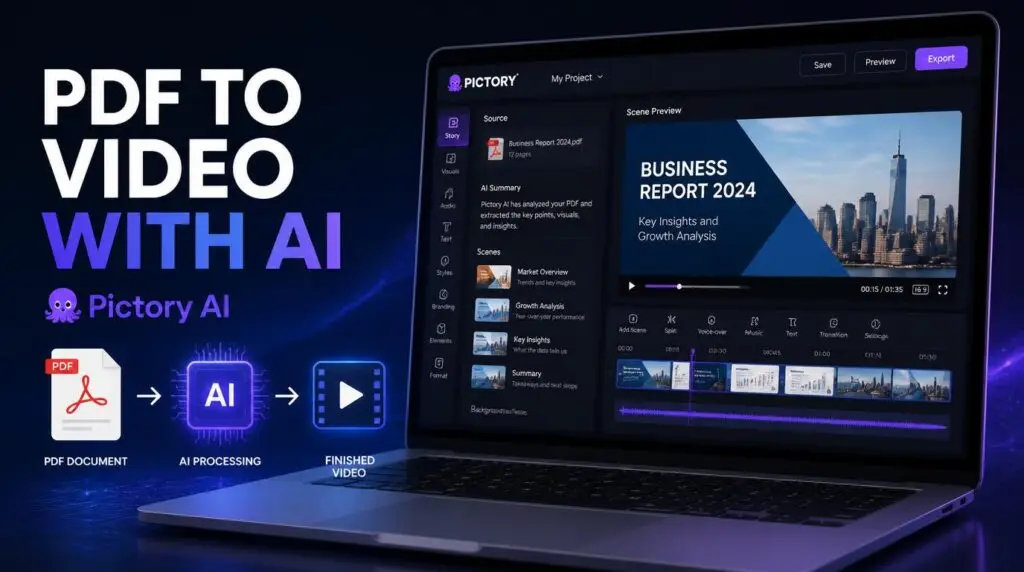
Turn a PDF into a video with Pictory AI — it’s easier than you think. Pictory can take any text content… Pictory can take any text content — including PDFs, blog posts, scripts, or web links — and automatically generate a video with matching visuals, voiceover, and music. In this guide, we walk through the process step by step.
What is Pictory AI?
To turn a PDF into a video, Pictory AI uses artificial intelligence to convert text into professional videos.
You don’t need any editing skills. You don’t need to appear on camera. You just upload your content and let AI do the work. If you’re new to the tool, our Pictory AI page covers the basics.
Turn a PDF Into a Video With Pictory AI: Step-by-Step
Here’s exactly how to turn a PDF into a video with Pictory AI:
Step 1: Open Pictory and Start a New Project
To start, go to Pictory and log in to your account. To turn a PDF into a video, you’ll need an account first. If you don’t have one, you can sign up for a free trial here.
Click on “Create New Project” and select “Text to Video” as your input type.
Step 2: Upload Your PDF or Paste the Text
You have two options here:
Upload the PDF file — Pictory will extract the text automatically
Copy and paste the text — If your PDF is short, you can paste it directly
For longer documents (like ebooks or reports), uploading the PDF is faster.
Step 3: Let AI Generate the Video
Once you’ve uploaded your content, click “Generate Video.” Pictory AI will analyze your text and create a video with:
Matching visuals and stock footage
AI voiceover (choose from multiple voices)
Background music
Automatic captions
The whole process takes 2-3 minutes.
Step 4: Customize Visuals, Music, and Voice
After the AI generates your video, you can customize it:
Change the voiceover (male, female, different accents)
Replace visuals with your own images
Adjust the music volume
Edit the text if needed
You can also choose from different templates and styles.
Step 5: Add Captions and Brand Kit
Pictory automatically adds captions to your video. You can customize the font, color, and size to match your brand.
If you have a Brand Kit (logo, colors, fonts), you can upload it to keep your videos consistent.
Step 6: Export and Share Your Video
Once you’re happy with the video, click “Export.” You can download it as an MP4 file or share it directly to YouTube, Facebook, or Instagram.
That’s it! Your PDF is now a professional video.
Tips for Better PDF-to-Video Results
Tip 1: Use Clear Formatting
Make sure your PDF has clear headings and short paragraphs. Pictory AI works better with structured text.
Tip 2: Add Visuals
The AI will automatically add stock footage, but you can also upload your own images or screenshots to make the video more personal.
Tip 3: Choose the Right Voiceover
Pictory offers multiple AI voices. Choose one that matches your audience. For business content, a professional male or female voice works best. If you want to know more about how AI voiceovers work in practice, our guide on AI voiceovers covers the topic in detail.
Tip 4: Keep It Short
Videos shorter than 5 minutes perform better on social media. If your PDF is long, break it into multiple videos.
Pros and Cons of Using Pictory for PDF Videos
Pros:
Extremely easy to use — no editing skills required
Saves hours of manual video creation
AI-generated visuals and voiceover
Automatic captions included
Free trial available
Cons:
Limited customization compared to professional editors
Can be slow with very long documents (100+ pages)
Some AI voices sound robotic
Conclusion: Is Pictory AI Worth It?
If you regularly work with PDFs and want to repurpose them into videos, Pictory AI is absolutely worth it. It saves you hours of editing time and produces professional results without any technical skills.
Whether you’re a content creator, marketer, business owner, or educator, turning PDFs into videos can help you reach a wider audience and increase engagement.
If you’re deciding between tools, our Pictory vs Canva comparison breaks down which one fits which type of project. And if you want more ideas for saving time with the tool, our guide on 5 ways Pictory can save you time creating videos has you covered.
Ready to try it? You can test Pictory AI for free here.
This article may contain affiliate links, learn more.
Pingback: Create More YouTube Videos With Pictory AI (2026)
Pingback: Pictory AI – 5 Ways to Save Time Creating Videos (2026)
Pingback: Create More YouTube Videos With Pictory AI (2026)